Windows desktop icon layout is lost after reboot
You notice that even though you setup a custom layout for your Windows desktop icons, the Windows desktop icon layout is lost after reboot.
Solution
Section titled “Solution”Follow the steps below to resolve the issue. You can automate the below tasks by running a startup Powershell script or a Windows scheduled task as part of a Group Policy object.
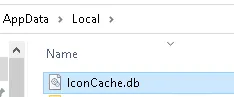
- Click Start –> Run –> %userprofile%. This will open the user’s profile folder. Ensure hidden folders are shown. Navigate to “AppData –> Local” folder and delete the IconCache.db file.
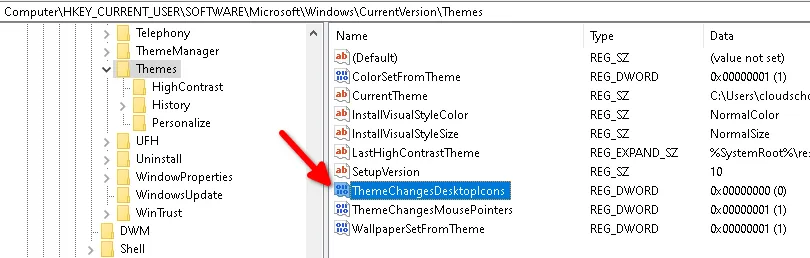
- Open regedit.exe and navigate to path Computer\HKEY_CURRENT_USER\Software\Microsoft\Windows\CurrentVersion\Themes. Ensure that the ThemeChangesDesktopIcons item’s value is set to zero (0).
4. TRACE-AI Execution Workflow
Section titled “4. TRACE-AI Execution Workflow”- Triage: Review monitoring dashboards or error metrics for initial anomaly spikes or timeout signatures.
- Record Evidence: Export service diagnostic logs, event viewers, or failure traces.
- Analyze: Correlate error signatures against known infrastructure or configuration limits.
- Correlate: Match active incident timeline against recent deployments or scale events.
- Execute & Verify: Apply corrective remediation steps and verify telemetry baseline recovery.
5. Vendor Documentation & Validation Guardrails
Section titled “5. Vendor Documentation & Validation Guardrails”- Authority Reference: Cross-reference configuration changes against official vendor documentation.
- Validation Gate: Require staging environment testing and Human-in-the-Loop SME approval before production changes.