We can’t sign you with this credential because your domain isn’t available
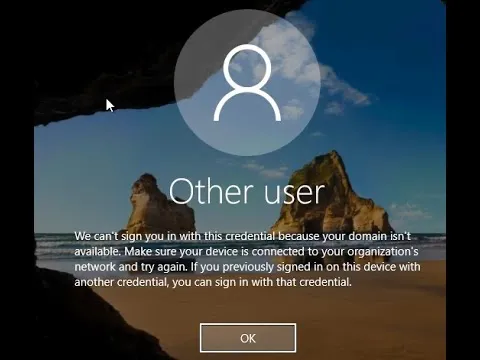
You have a Windows 10 or 11 machine and after a local machine incident (operating system crash or system reboot) you find that you cannot login to Windows using Active Directory domain user credentials. Login with local user credentials works without issues. When you try to login with domain credentials, you receive the following error and login is not possible. We can’t sign you in with this credential because your domain isn’t available. Make sure your device is connected to your organization’s network and try again. If you previously signed in on this device with another credential, you can sign in with that credential.
Solution
Section titled “Solution”The most common root cause is that one of the machines or devices in your network cannot authenticate against Active Directory via any of the available domain controllers. For this reason, you will need to ensure that you have a fully functional Active Directory environment. Make use of the repadmin and dcdiag tools in Windows Server for validating the health of your Active Directory forest and domain(s). Then you should check all machines involved in the Acronis Cyber Protect backup process, including all Acronis management servers and machines where the Acronis backup agent is running, as well as all network appliances (such as NAS, SAN) which function as the backup destination of any of your Acronis backup plans. All these machines and appliances will need to be able to authenticate against your Active Directory domain.
Another series of checks you should perform as well as DNS health related checks. Check your DNS server (BIND in Linux or Windows Server-based DNS) to ensure that DNS resolution works without issues. Also ensure that all Acronis machines and appliances have at least one valid DNS server configured to be able to resolve names in your Active Directory network.
To resolve the “We can’t sign you with this credential because your domain isn’t available” issue, carry out the following steps.
-
Reboot and try again. In many cases the issue is resolved after a machine reboot. You may need to repeat the reboot for a few more times, wait about 5 minutes and try again.
-
Ensure you are not making a typo in the user’s name. You should use either the UPN format ([email protected]) or the sAMAccountName (domain\username).
-
If the reboot does not work, login to the machine with local administrator credentials and check all operating system event logs for details of the issue occurring, so that you can resolve it by taking manual actions.
-
Check your Active Directory (AD) domain controller replication health and run repadmin and dcdiag tests. Run the following commands in an elevated command prompt on one of your domain controllers.
-
Disjoin the machine from the AD domain by first logging in with a local administrator user, reboot and rejoin the machine to the domain in order to re-establish trust.
-
Check the AD domain Kerberos credentials and encrypted keys (Kerberos tickets) for validity and renew them if possible.
-
Check also separate KB article on the same error: https://docs.cloudschool.ai/kb/how-to-resolve-acronis-error-windows-error-0x8007051f-there-are-currently-no-logon-servers-available-to-service-the-logon-request/
Sources
Section titled “Sources”https://docs.microsoft.com/en-us/answers/questions/63629/kerberos-refresh-clients.html
https://www.bu.edu/engit/knowledge-base/grid/kerberos-tickets/
4. TRACE-AI Execution Workflow
Section titled “4. TRACE-AI Execution Workflow”- Triage: Review monitoring dashboards or error metrics for initial anomaly spikes or timeout signatures.
- Record Evidence: Export service diagnostic logs, event viewers, or failure traces.
- Analyze: Correlate error signatures against known infrastructure or configuration limits.
- Correlate: Match active incident timeline against recent deployments or scale events.
- Execute & Verify: Apply corrective remediation steps and verify telemetry baseline recovery.
5. Vendor Documentation & Validation Guardrails
Section titled “5. Vendor Documentation & Validation Guardrails”- Authority Reference: Cross-reference configuration changes against official vendor documentation.
- Validation Gate: Require staging environment testing and Human-in-the-Loop SME approval before production changes.