The referenced account is currently locked out and may not be logged on to
When trying to login to a Windows account, either a local or domain Windows Server account, you incorrectly provide the password multiple times and eventually the account gets locked. You receive the following message: The referenced account is currently locked out and may not be logged on to. This article provides an easy way to unlock the user account and thus allow you to login without issues.
Solution of error the referenced account is currently locked out and may not be logged on to
Section titled “Solution of error the referenced account is currently locked out and may not be logged on to”Navigate to the Active Directory server or any management server which has the Remote Server Administration Tools (RSAT) installed and the Powershell Active Directory module imported. If the Powershell Active Directory module is not imported, import it by running the below command.
import-module ActiveDirectoryRun the following command in an elevated Powershell terminal.
Get-AdUser [user samaccountname] -properties sAMAccountName,Enabled,LockedOut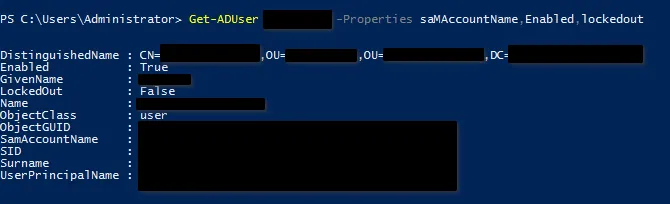
If the user is locked out you should see the relevant property set to True. Now execute the following command.
Unlock-ADAccount [user sAMAccountName]

Your user “lockedout” property should now be unlocked and ready to be used for logon.
An alternative method would be to make use of the Active Directory Users and Computers MMC snapin (dsa.msc) or the Windows Admin Center interface to issue a command to unlock the Active Directory user account object. This can also be done when resetting a user’s account password from the DSA.MSC console.
This article provided guidance on how to resolve issue “The referenced account is currently locked out and may not be logged on to”.
4. TRACE-AI Execution Workflow
Section titled “4. TRACE-AI Execution Workflow”- Triage: Review monitoring dashboards or error metrics for initial anomaly spikes or timeout signatures.
- Record Evidence: Export service diagnostic logs, event viewers, or failure traces.
- Analyze: Correlate error signatures against known infrastructure or configuration limits.
- Correlate: Match active incident timeline against recent deployments or scale events.
- Execute & Verify: Apply corrective remediation steps and verify telemetry baseline recovery.
5. Vendor Documentation & Validation Guardrails
Section titled “5. Vendor Documentation & Validation Guardrails”- Authority Reference: Cross-reference configuration changes against official vendor documentation.
- Validation Gate: Require staging environment testing and Human-in-the-Loop SME approval before production changes.