How to take configuration backup of Citrix and Microsoft components
Scenario
Section titled “Scenario”You need to take configuration backup of all Citrix and Microsoft components in an on-prem installation. This should be done after a new infrastructure has been deployed, in order to keep a baseline configuration for disaster recovery purposes.
Solution
Section titled “Solution”Follow the procedures outlined in the following sections for each of the Citrix and Microsoft components applicable to your environment.
Citrix VAD Storefront
Section titled “Citrix VAD Storefront”Open an elevated Powershell terminal on the primary Storefront server and run the following commands:
Export-STFConfiguration -targetFolder "$env:userprofile\desktop\" -zipFileName "CitrixStorefrontBackup.zip" -NoEncryptionCitrix ADC
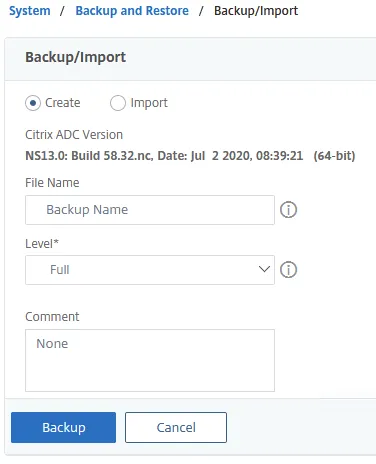
Section titled “Citrix ADC”Login to the ADC management web interface as admin user and navigate to Menu –> System –> Backup and Restore.
Click on Backup/Import button and click the Create option, then provide the backup details.
Microsoft Hyper-V guest OS
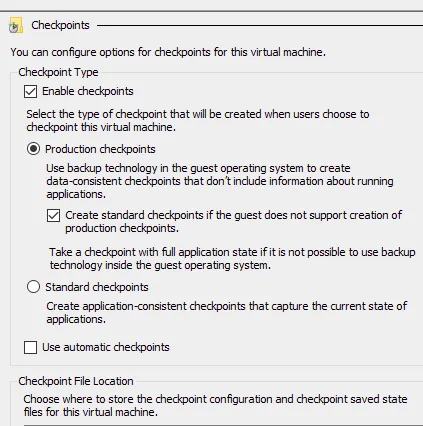
Section titled “Microsoft Hyper-V guest OS”Schedule the creation of checkpoints (formerly known as snapshots). The checkpoints configuration is carried out at a VM level inside Hyper-V manager or Windows Failover Cluster manager for a Hyper-V cluster.
Please note that checkpoints are not a replacement of image backup technology for Hyper-V hosts and Hyper-V guests.
Windows Server System State Backup
Section titled “Windows Server System State Backup”By taking regular Windows Server/client system state backups of all Hyper-V hosts and guests ensures that the operating system state is restored to a healthy/running state in case of an operating system fault or other emergency. System state backups contain the following data which can be useful in a disaster recovery scenario:
- Performance Counter Configuration information
- Boot-related and system files
- Component Services Class registration database
- Windows System Registry
- Various Microsoft server role configuration including Microsoft Certificate Services, Active Directory Domain Services and IIS
Please refer to the following Microsoft article about Windows Server Backup feature for taking system state backup of Windows-based systems: https://docs.microsoft.com/en-us/previous-versions/windows/it-pro/windows-server-2012-r2-and-2012/jj614621(v=ws.11)
4. TRACE-AI Execution Workflow
Section titled “4. TRACE-AI Execution Workflow”- Triage: Review monitoring dashboards or error metrics for initial anomaly spikes or timeout signatures.
- Record Evidence: Export service diagnostic logs, event viewers, or failure traces.
- Analyze: Correlate error signatures against known infrastructure or configuration limits.
- Correlate: Match active incident timeline against recent deployments or scale events.
- Execute & Verify: Apply corrective remediation steps and verify telemetry baseline recovery.
5. Vendor Documentation & Validation Guardrails
Section titled “5. Vendor Documentation & Validation Guardrails”- Authority Reference: Cross-reference configuration changes against official vendor documentation.
- Validation Gate: Require staging environment testing and Human-in-the-Loop SME approval before production changes.