How to resolve OpenVPN access denied errors in Windows
You try to connect to a remote VPN server by using a Point-To-Site VPN connection and OpenVPN client. The OpenVPN client reports that connection succeeds buy you are unable to route IP packets to any endpoint on the destination site. You also notice the following errors in the OpenVPN log. This KB article provides guidance on how to resolve OpenVPN access denied errors in Windows.
Rote addition failed using CreateIPForwardEntry: Access is denied.
Windows route add cmmand failed [adaptive]: returned error code 1.
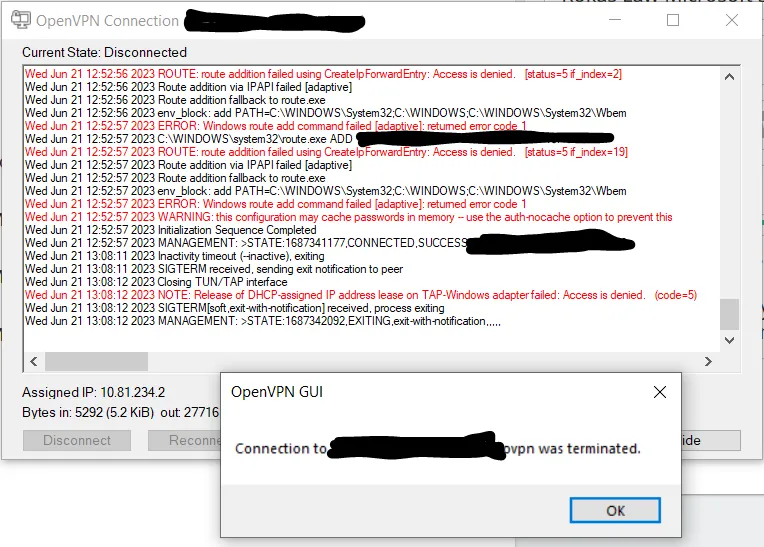
You have User Account Control (UAC) enabled on the windows machine where the OpenVPN client is running.
Solution
Section titled “Solution”Follow the steps below to resolve the issue.
-
Open the services.msc MMC console on the machine where the OpenVPN client is running.
-
Ensure that your windows service named “OpenVPN Interactive Service”.

This service allows OpenVPN GUI and other clients to establish OpenVPN connections without the need for administrative access (local administrator).
- Attempting an OpenVPN connection again should be successful.

4. TRACE-AI Execution Workflow
Section titled “4. TRACE-AI Execution Workflow”- Triage: Review monitoring dashboards or error metrics for initial anomaly spikes or timeout signatures.
- Record Evidence: Export service diagnostic logs, event viewers, or failure traces.
- Analyze: Correlate error signatures against known infrastructure or configuration limits.
- Correlate: Match active incident timeline against recent deployments or scale events.
- Execute & Verify: Apply corrective remediation steps and verify telemetry baseline recovery.
5. Vendor Documentation & Validation Guardrails
Section titled “5. Vendor Documentation & Validation Guardrails”- Authority Reference: Cross-reference configuration changes against official vendor documentation.
- Validation Gate: Require staging environment testing and Human-in-the-Loop SME approval before production changes.