How to resolve Microsoft Teams error cannot install for all users when a VDI environment is not detected
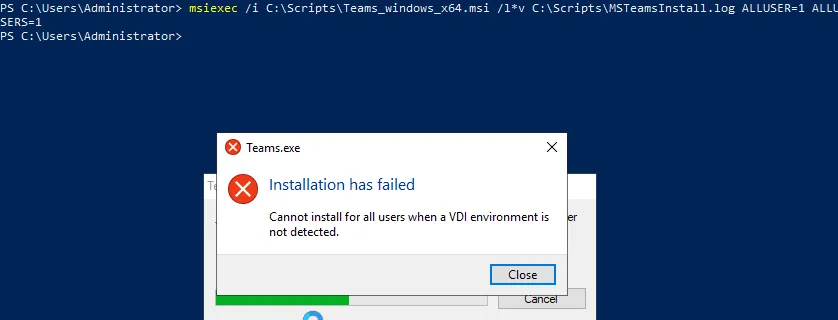
You try to install Microsoft Teams in per-machine mode on a Microsoft RDS session host machine. During the installation you come across the following error:
Cannot install for all users when a VDI environment is not detected.
Solution
Section titled “Solution”Microsoft Teams machine-wide installer checks for the presence of any of the following registry keys during installation:
- HKEY_LOCAL_MACHINE\SOFTWARE\Microsoft\Teams\IsWVDEnvironment
- HKLM\Software\Citrix\PortICA
- HKLM\Software\VMware,Inc.\VMware VDM\Agent
If you are installing on a Microsoft RDS session host machine, you should create any of the above registry keys to spoof the VDI requirement of the ALLUSERS and ALLUSER flags.
Therefore you first need to create any of the above registry keys on your machine. The registry key should have following values:
Type: REG_DWORD
Value: 1
After the registry key is created then you can run the Microsoft Teams installation command in machine-wide mode, as shown below:
msiexec /i <path_to_msi> /l*v <path_to_logfile_name> ALLUSER=1 ALLUSERS=1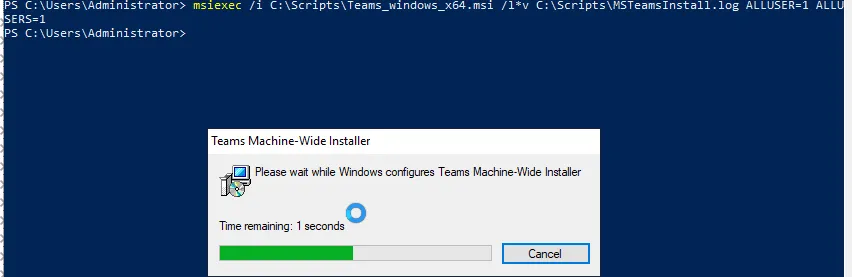
4. TRACE-AI Execution Workflow
Section titled “4. TRACE-AI Execution Workflow”- Triage: Review monitoring dashboards or error metrics for initial anomaly spikes or timeout signatures.
- Record Evidence: Export service diagnostic logs, event viewers, or failure traces.
- Analyze: Correlate error signatures against known infrastructure or configuration limits.
- Correlate: Match active incident timeline against recent deployments or scale events.
- Execute & Verify: Apply corrective remediation steps and verify telemetry baseline recovery.
5. Vendor Documentation & Validation Guardrails
Section titled “5. Vendor Documentation & Validation Guardrails”- Authority Reference: Cross-reference configuration changes against official vendor documentation.
- Validation Gate: Require staging environment testing and Human-in-the-Loop SME approval before production changes.