How to resolve Microsoft 365 authentication error ID 135011
When you try to authenticate to Microsoft 365 via any client such as Microsoft Outlook, you encounter the following error ID 135011. Error states that “your organization has disabled this device”.
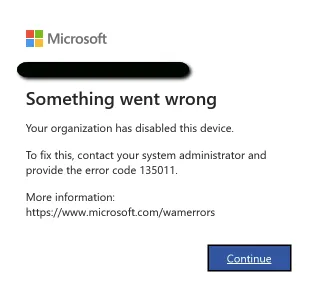
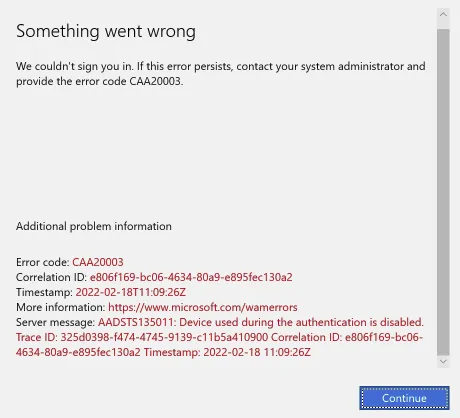
By clicking “Continue” you receive the following verbose information.
Solution
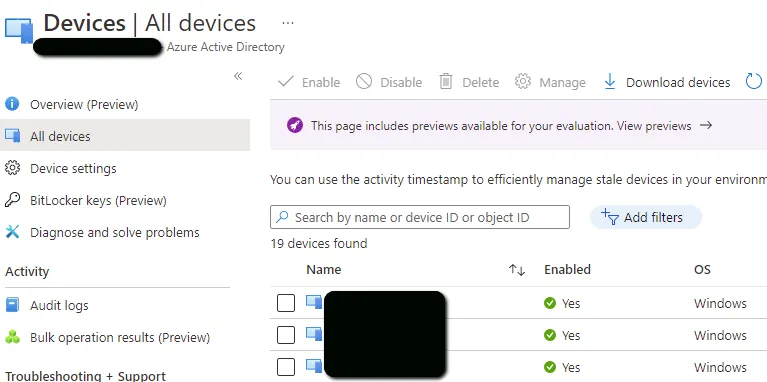
Section titled “Solution”In most cases, this issue is resolved by navigating to the Azure AD management portal and in the “Devices” blade identify the device which reports the issue. If the disable has a Disabled status, simply set it to Enabled.
If issue is not resolved by the above action, then further troubleshooting can be carried out as per the instructions in a separate KB article.
4. TRACE-AI Execution Workflow
Section titled “4. TRACE-AI Execution Workflow”- Triage: Review monitoring dashboards or error metrics for initial anomaly spikes or timeout signatures.
- Record Evidence: Export service diagnostic logs, event viewers, or failure traces.
- Analyze: Correlate error signatures against known infrastructure or configuration limits.
- Correlate: Match active incident timeline against recent deployments or scale events.
- Execute & Verify: Apply corrective remediation steps and verify telemetry baseline recovery.
5. Vendor Documentation & Validation Guardrails
Section titled “5. Vendor Documentation & Validation Guardrails”- Authority Reference: Cross-reference configuration changes against official vendor documentation.
- Validation Gate: Require staging environment testing and Human-in-the-Loop SME approval before production changes.