How to reset the password of a Microsoft 365 user
This article provides guidance on how to reset the password of a Microsoft 365 user. The article is also available in my podcast and Youtube channel. View this article as a how-to video on Youtube.
https://youtu.be/ZUpZimP98JM?list=PLYbmn4csggdE9qNg7iIOwLJf1EUHUBvCw
The current articles provides guidance on how to reset the password of a Microsoft 365 user, in the Microsoft 365 Admin Center.
Solution
Section titled “Solution”To reset the password of a Microsoft 365 user, go through the following steps.
-
Navigate with your Web browser to https://admin.microsoft.com.
-
On the left pane, click on “Users”, then click “Active Users”.
-
Under the “Active Users” section on the main area, click on “Reset Password”.

-
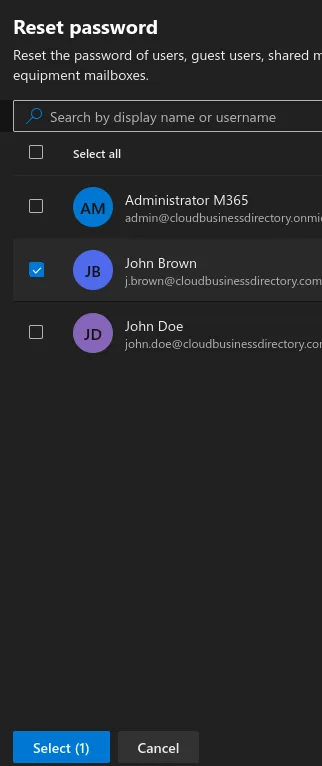
Search for the users whose password you wish to reset and tick all applicable users’ checkboxes.
-
Click the highlighted “Select” button at the bottom.
-
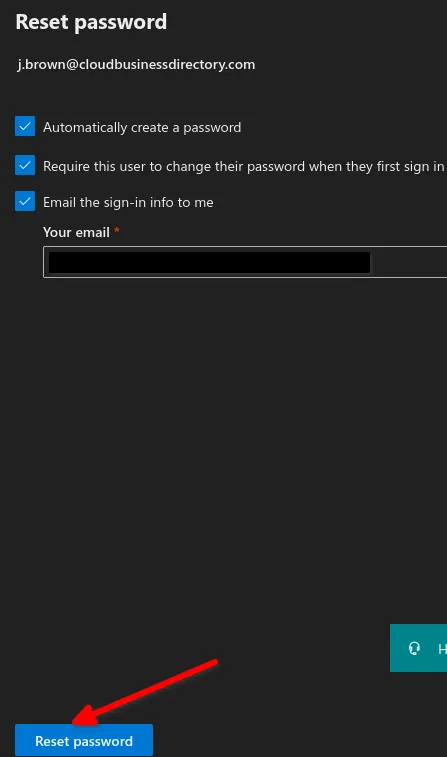
Tick the “Automatically create a password” and the “Require these users to change their password when they first sign in” options. Also tick the “email the sign-in info to me” option and fill-in the email of an administrator user to receive the new temporary password. Or,if you are reseting the password for a single user, fill-in this field with the email of the user whose password is being changed, so that the user is directly informed about the temporary password.
-
Click “Reset password”.
- You receive a notification that “password has been reset”. You should be able to view the usernames whose passwords have been reset, as well as the generated temporary passwords. Click “Close” to return to the Active Users page.
4. TRACE-AI Execution Workflow
Section titled “4. TRACE-AI Execution Workflow”- Triage: Review monitoring dashboards or error metrics for initial anomaly spikes or timeout signatures.
- Record Evidence: Export service diagnostic logs, event viewers, or failure traces.
- Analyze: Correlate error signatures against known infrastructure or configuration limits.
- Correlate: Match active incident timeline against recent deployments or scale events.
- Execute & Verify: Apply corrective remediation steps and verify telemetry baseline recovery.
5. Vendor Documentation & Validation Guardrails
Section titled “5. Vendor Documentation & Validation Guardrails”- Authority Reference: Cross-reference configuration changes against official vendor documentation.
- Validation Gate: Require staging environment testing and Human-in-the-Loop SME approval before production changes.