How to manage the Windows sysmon folder disk size
You have deployed Microsoft Sysmon application in a Windows server or client machine and after some time of operation, you start receiving alerts for low disk space in disk C. Sysmon comes as part of the Microsoft SysInternals suite of tools. This article provides guidance on how to manage the Windows sysmon folder disk size.
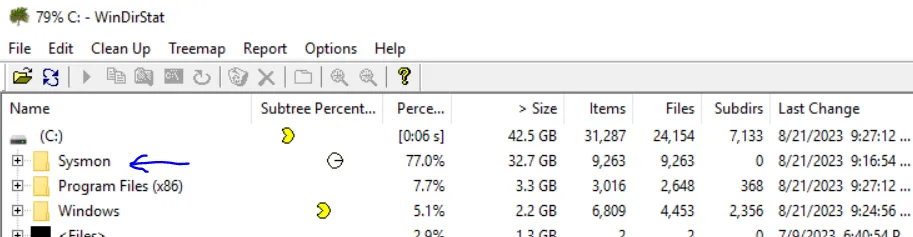
However by analyzing the file system hierarchy, you cannot detect where the space gets used. This is because the Windows sysmon folder (C:\Sysmon) is system protected and cannot be viewed unless you browse the file system as the “system” operating system user. This article provides a method on how to manage the Windows sysmon folder disk size, by controlling and cleaning up the C:\Sysmon folder.
Solution
Section titled “Solution”For all machines with Sysmon installed, the C:\Sysmon folder tends to get bloated after some time of operations. The folder includes for example *.bin, *.exe and *.ps1 files as well as various shortcut (*.lnk files). You can create a Windows scheduled task to periodically delete the *.bin files but a more permanent solution should cater for the C:\Sysmon folder to not get bloated by imposing a sysmon archive quota.
First off, run the following command with PSExec (part of Windows SysInternals suite) in an elevated command prompt. The comman assumes that PsExec.exe is present in the active directory. After running the commend you should get a cmd.exe command line, impersonated as the nt author\SYSTEM user.
PsExec.exe -s -i cmd.exe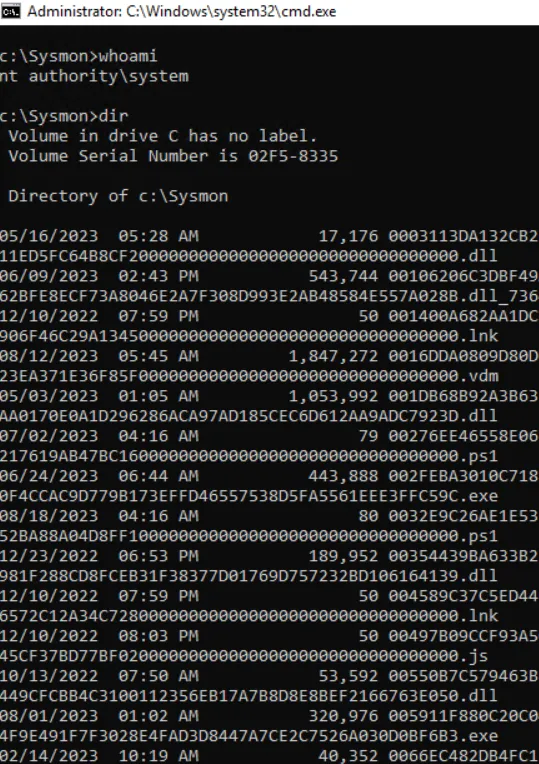
The following Powershell script utilizes WMI event filtering to ensure that the oldest Sysmon entries are removed first in a first-in-first-out (FIFO) fashion.
https://blog.nviso.eu/2022/06/30/enforcing-a-sysmon-archive-quota/
The following Powershell script takes a different approach by imposing a file system quota for sysmon.
https://gist.github.com/zbalkan/17fbe38864a900a2f1eeac2088c5d49e
4. TRACE-AI Execution Workflow
Section titled “4. TRACE-AI Execution Workflow”- Triage: Review monitoring dashboards or error metrics for initial anomaly spikes or timeout signatures.
- Record Evidence: Export service diagnostic logs, event viewers, or failure traces.
- Analyze: Correlate error signatures against known infrastructure or configuration limits.
- Correlate: Match active incident timeline against recent deployments or scale events.
- Execute & Verify: Apply corrective remediation steps and verify telemetry baseline recovery.
5. Vendor Documentation & Validation Guardrails
Section titled “5. Vendor Documentation & Validation Guardrails”- Authority Reference: Cross-reference configuration changes against official vendor documentation.
- Validation Gate: Require staging environment testing and Human-in-the-Loop SME approval before production changes.