How to invite Azure AD guest users in bulk
You need to invite a large number of external users as guest users in Azure AD.
Solution
Section titled “Solution”Follow the procedure below to invite a Azure AD guest users in bulk:
- Navigate to the Azure AD management portal and go to “Users” section.
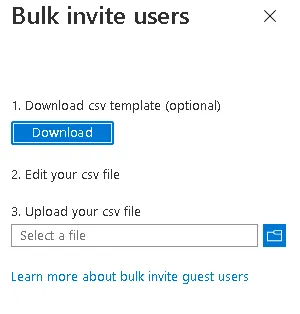
- Click on “Bulk Operations –> Bulk Invite”.

- Download the .csv template, fill it in with your guest user information and upload it.
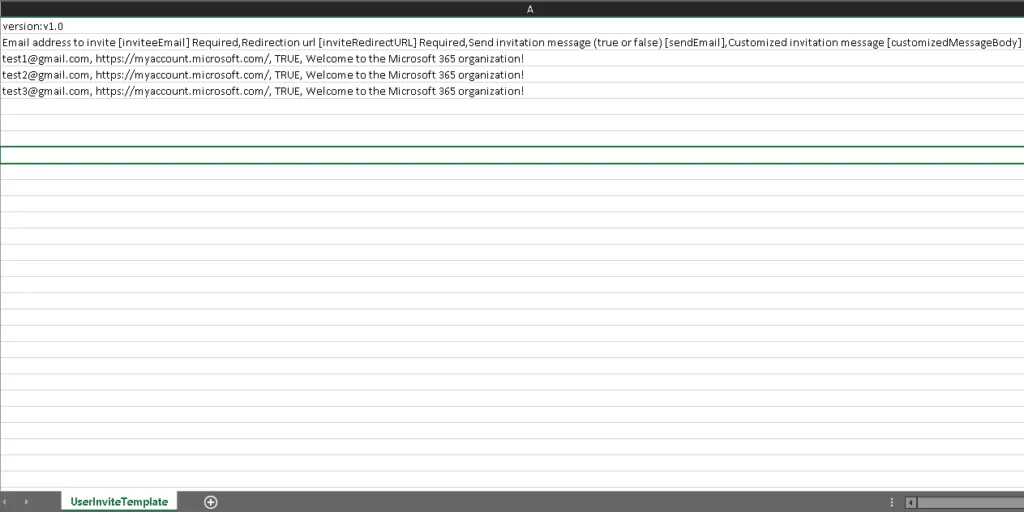
- Edit the csv file in Excel by following the example on the first line.
- After uploading the file, the import procedure automatically starts. You can click on the active link to check the status of each operation until it completes with an output message.

Note that you can use a similar process to add/create Azure AD users in bulk, by initiating the process from the same menu in the Azure AD management portal.
After adding the users/guest users you can click on each user’s name to edit their properties such as assigned roles, groups, apps and devices. Same configuration can obviously be performed via Azure Powershell or Azure CLI.
4. TRACE-AI Execution Workflow
Section titled “4. TRACE-AI Execution Workflow”- Triage: Review monitoring dashboards or error metrics for initial anomaly spikes or timeout signatures.
- Record Evidence: Export service diagnostic logs, event viewers, or failure traces.
- Analyze: Correlate error signatures against known infrastructure or configuration limits.
- Correlate: Match active incident timeline against recent deployments or scale events.
- Execute & Verify: Apply corrective remediation steps and verify telemetry baseline recovery.
5. Vendor Documentation & Validation Guardrails
Section titled “5. Vendor Documentation & Validation Guardrails”- Authority Reference: Cross-reference configuration changes against official vendor documentation.
- Validation Gate: Require staging environment testing and Human-in-the-Loop SME approval before production changes.