How to install Windows apps in silent mode
You need to carry out batch install of an application on multiple machines or use scripting to automate the deployment of applications. You need to find an efficient way to install an application in silent mode aka quiet mode or unattended mode, i.e. use silent installation.
Solution
Section titled “Solution”There are a number of ways to determine how to install a Windows app in silent mode. The following are the most common:
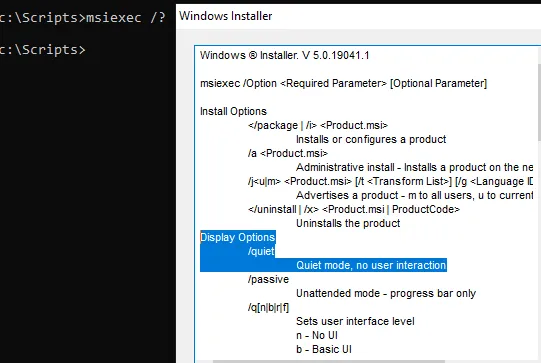
- Determine the silent install switches, if any, by running the application followed by the /? flag in Windows command line.
- If you are not able to determine the silent install switch by quering the executable itself, research online either directly in Google or by checking the application manual/documentation.
- Try to extract the contents of an .exe or .msi package to see if there are further hidden executables inside the original executable which could provide the answer with a silent switch. You can use a tool such as 7-zip or similar MSI tool to accomplish that.
- Make use of the Silent Install Builder tool, available at: https://www.silentinstall.org/. The Silent Install Builder allows you to easily install multiple programs with one click. You can create a setup package that contains multiple application installers. To install these applications, simply run the package. Programs will be installed automatically in background mode (silently).
- Make use of a third party application such as AppDeploy Repackager (https://www.itninja.com/community/appdeploy-repackager/download) and Ultimate Silent Switch Finder (https://deployhappiness.com/resources/tool-downloads/).
- Make use of the excellent documentation available at http://unattended.sourceforge.net/installers.php. As stated on this tool’s website: “The goal of this document is to collect instructions for performing unattended / silent installations of many popular application installers. Such instructions are useful for automating these installations.”. As this website also vividly states: “ The two basic principles of Windows system administration: For minor problems, reboot. For major problems, reinstall.“
- Some applications make use of unattended setup methodologies including unattended answer files, following the principle of Windows answer files (https://docs.microsoft.com/en-us/windows-hardware/customize/desktop/unattend/).
- Make use of Windows Powershell, AutoHotKey (https://www.autohotkey.com/) or AutoIt (https://www.autoitscript.com/) for implementing the silent installation by essentially automating the installation.
Sources
Section titled “Sources”https://www.pdq.com/blog/install-silent-finding-silent-parameters/
https://deployhappiness.com/the-ultimate-exe-silent-switch-finder/
https://www.silentinstall.org/
http://unattended.sourceforge.net/installers.php
https://docs.microsoft.com/en-us/windows-hardware/customize/desktop/unattend/
4. TRACE-AI Execution Workflow
Section titled “4. TRACE-AI Execution Workflow”- Triage: Review monitoring dashboards or error metrics for initial anomaly spikes or timeout signatures.
- Record Evidence: Export service diagnostic logs, event viewers, or failure traces.
- Analyze: Correlate error signatures against known infrastructure or configuration limits.
- Correlate: Match active incident timeline against recent deployments or scale events.
- Execute & Verify: Apply corrective remediation steps and verify telemetry baseline recovery.
5. Vendor Documentation & Validation Guardrails
Section titled “5. Vendor Documentation & Validation Guardrails”- Authority Reference: Cross-reference configuration changes against official vendor documentation.
- Validation Gate: Require staging environment testing and Human-in-the-Loop SME approval before production changes.