How to install and manage CLI for Microsoft 365
CLI for Microsoft 365 is an open-source project driven by the Microsoft 365 Patterns and Practices initiative. With the CLI for Microsoft 365, you can configure your tenant no matter which operating system you use. The CLI for Microsoft 365 is an OS-agnostic alternative of the Microsoft 365 Powershell modules. Additionally, using CLI for Microsoft 365, you can manage your SharePoint Framework projects. This how-to articles shows how to install and manage CLI for Microsoft 365 latest version.
Solution
Section titled “Solution”Firstly it is recommended to install a Node version manager like nvm, which will allow you to install Node.js and npm. nvm is a version manager for node.js, designed to be installed per-user, and invoked per-shell. nvm works on any POSIX-compliant shell (sh, dash, ksh, zsh, bash), in particular on these platforms: unix, macOS, and windows WSL. NVM-Windows is available for Windows installations from: https://github.com/coreybutler/nvm-windows. The procedure provided in this article is meant for Windows endpoints. A very similar installation procedure can be followed in Linux endpoints.
Follow the procedure below:
- Download the Windows installer of nvm-windows from https://github.com/coreybutler/nvm-windows/releases/download/1.1.9/nvm-setup.zip. Or check the github page for a more recent installer version: https://github.com/coreybutler/nvm-windows.
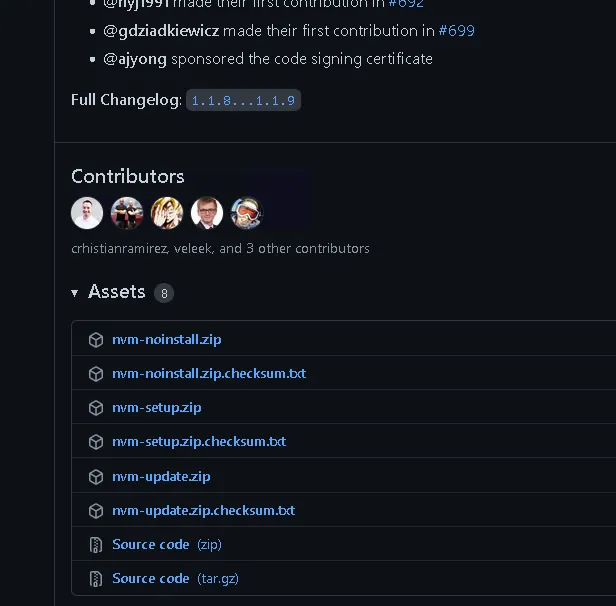
Extract the zip file and run setup.exe.
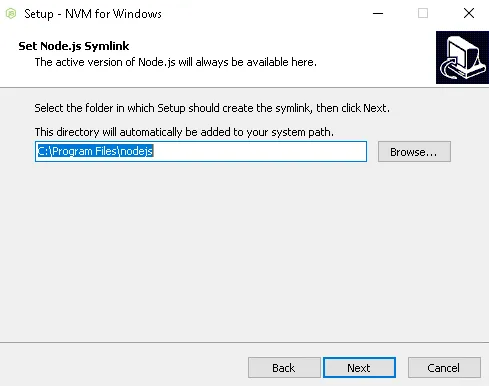
Now check which NodeJS and NPM version you need to install from and run the installation via NVM by running below command, as an example.
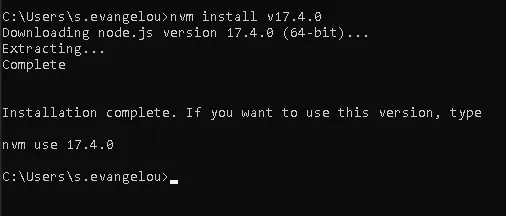
nvm install v17.0.4 Now open an elevated command line and run the below command: nvm use 17.4.0 Now install the CLI for Microsoft 365 by running following command inside the elevated command prompt: npm i -g @pnp/cli-microsoft365
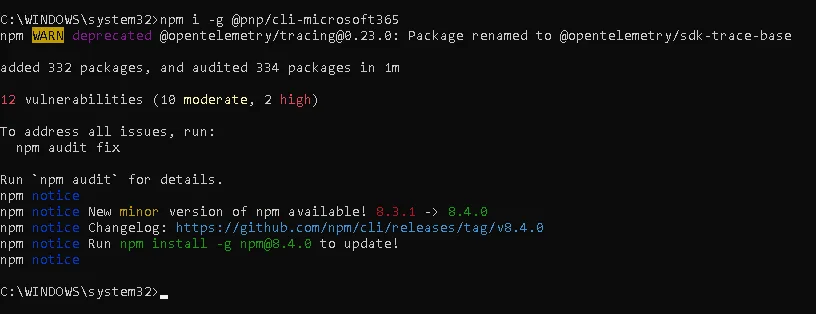
You can now start running m365 commands in the CLI First run command below to get some documentation on available commands:
m365 help
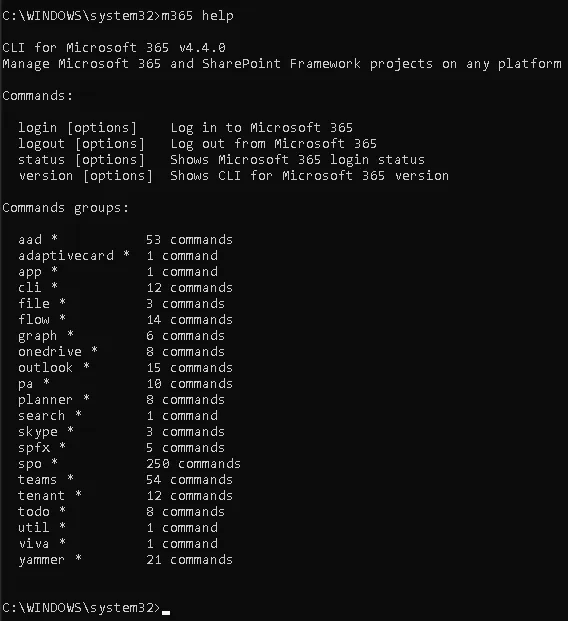
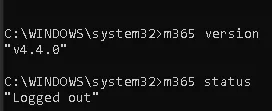
For example the current version and status of the M365 module can be seen as per below.
Consult the following resource for more information: https://pnp.github.io/cli-microsoft365/.
Sources
Section titled “Sources”https://pnp.github.io/cli-microsoft365/
https://docs.npmjs.com/downloading-and-installing-node-js-and-npm
4. TRACE-AI Execution Workflow
Section titled “4. TRACE-AI Execution Workflow”- Triage: Review monitoring dashboards or error metrics for initial anomaly spikes or timeout signatures.
- Record Evidence: Export service diagnostic logs, event viewers, or failure traces.
- Analyze: Correlate error signatures against known infrastructure or configuration limits.
- Correlate: Match active incident timeline against recent deployments or scale events.
- Execute & Verify: Apply corrective remediation steps and verify telemetry baseline recovery.
5. Vendor Documentation & Validation Guardrails
Section titled “5. Vendor Documentation & Validation Guardrails”- Authority Reference: Cross-reference configuration changes against official vendor documentation.
- Validation Gate: Require staging environment testing and Human-in-the-Loop SME approval before production changes.