How to get a report of Microsoft 365 application activations
You have a Microsoft 365 tenant and you need to get a list of Microsoft 365 application activations for all users in your environment. This KB article provides guidance on how to get a report of Microsoft 365 application activations.
Solution
Section titled “Solution”There are two ways to retrieve this information. Both are reachable via the Microsoft 365 admin center.
Get detailed application activation information per user
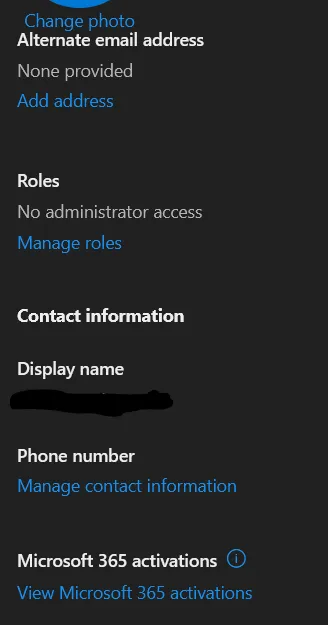
Section titled “Get detailed application activation information per user”Login to the Microsoft 365 admin center as as a Microsoft 365 global admin or user administrator role. Navigate to the Users –> Active Users menu and click on the user whose Microsoft 365 app activations you need to report on. Click on the “View Microsoft 365 activations” link at the very bottom.
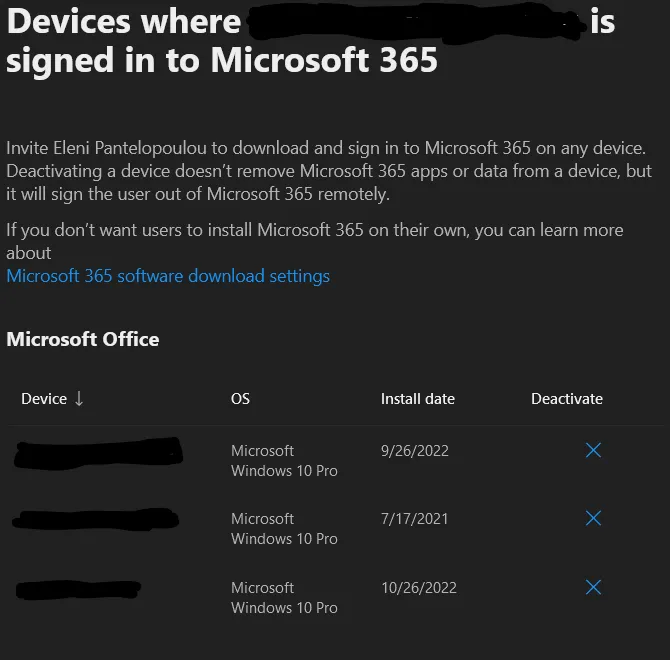
This will give you a list of the devices, operating systems and install dates for each Microsoft 365 application activation for that user.
Get summary application activation information at organization level
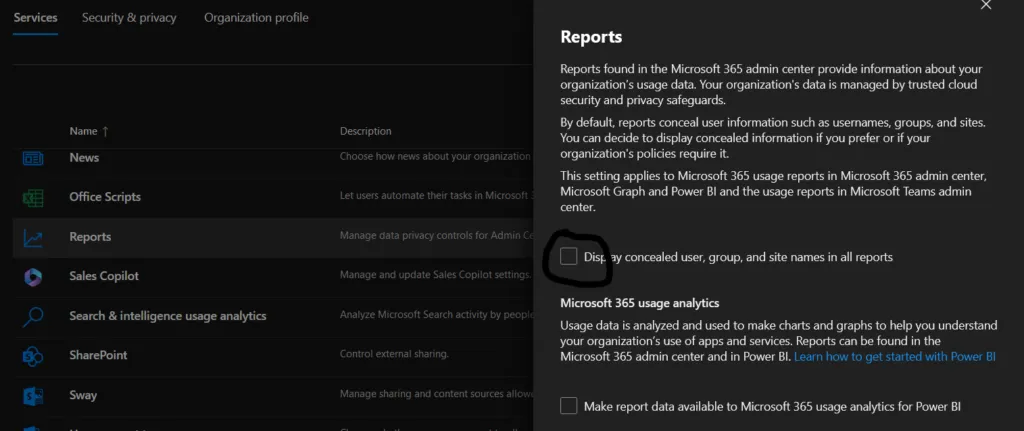
Section titled “Get summary application activation information at organization level”Login to the Microsoft 365 admin center as as a Microsoft 365 global admin or user administrator role. First navigate to Org Settings and click on “Reports” under the “Services” tab. Ensure that you uncheck the “Display concealed user, group and site names in all reports” option.
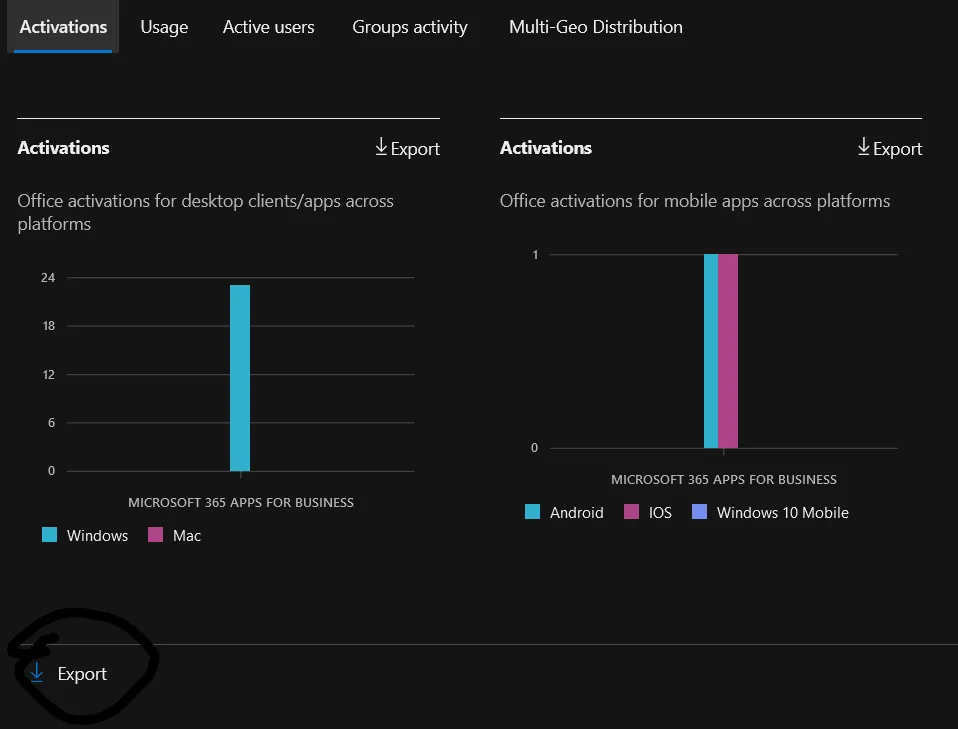
Navigate to Reports –> Usage and then click onthe “View more” button under the Office activations section.
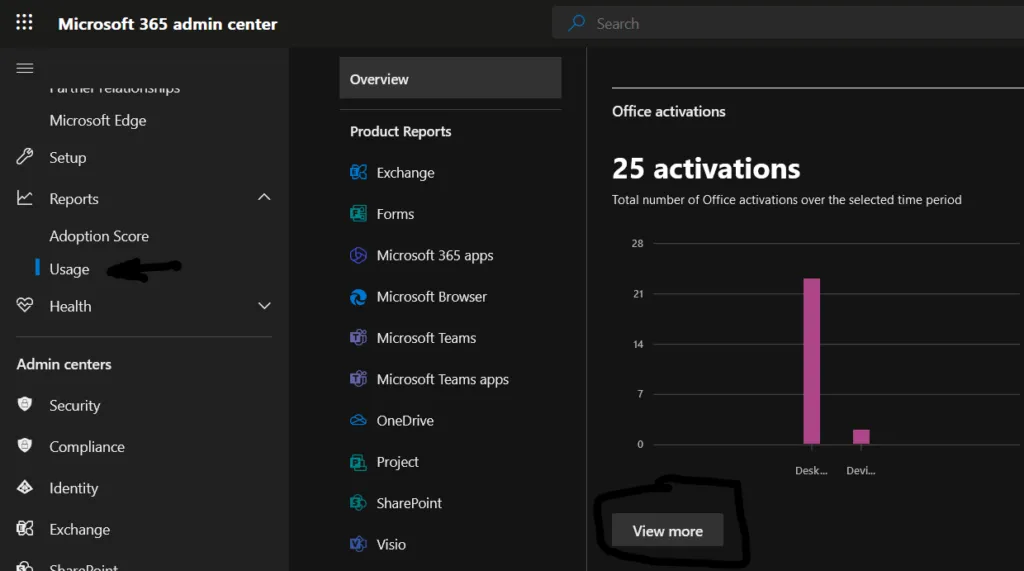
This will allow you to review activation-related information at organization level for all your users. Click on “Export” in the relevant section to export a file with all Microsoft 365 application activation entries.
Prevent users from installing Microsoft 365 apps on their devices
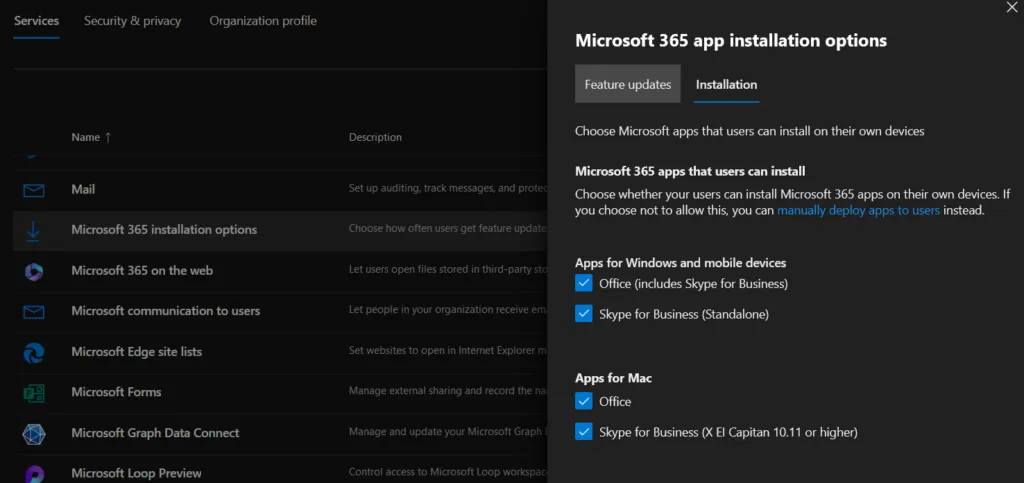
Section titled “Prevent users from installing Microsoft 365 apps on their devices”The only way to disallow Microsot 365 users to install Microsoft 365 apps in their devices is bby navigating to Org Settins and under the “Services” tab click on “Microsoft 365 installation options. Then cliick on the “Installation” tab and uncheck the applicable options as per your requirements, as shown in the below screenshot.
4. TRACE-AI Execution Workflow
Section titled “4. TRACE-AI Execution Workflow”- Triage: Review monitoring dashboards or error metrics for initial anomaly spikes or timeout signatures.
- Record Evidence: Export service diagnostic logs, event viewers, or failure traces.
- Analyze: Correlate error signatures against known infrastructure or configuration limits.
- Correlate: Match active incident timeline against recent deployments or scale events.
- Execute & Verify: Apply corrective remediation steps and verify telemetry baseline recovery.
5. Vendor Documentation & Validation Guardrails
Section titled “5. Vendor Documentation & Validation Guardrails”- Authority Reference: Cross-reference configuration changes against official vendor documentation.
- Validation Gate: Require staging environment testing and Human-in-the-Loop SME approval before production changes.