How to force logoff a Windows user from the command line
You need to locally or remotely logoff a Windows user but when clicking logoff/sign out from the task manager, the UI does not respond and nothing happens.
Solution
Section titled “Solution”You need to use the Windows terminal / CLI or Powershell to forcefully logoff a user. To force logoff a Windows user when being logged on locally on that machine, run the below commands on an elevated command prompt or Powershell window. The quser command output provides the user session ID, which you must use in the subsequent command to successfully logoff the stuck user.
quserlogoff [user session ID]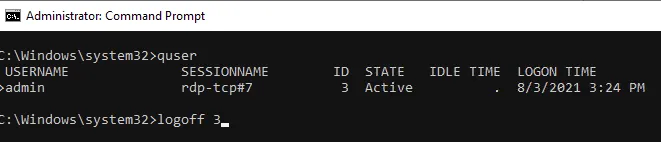
In the above example, there is only one user logged on at the moment, however in cases where there are other users stuck in disconnected state and you cannot log them off otherwise, the above commands can come in very handy. Also you can remotely logoff a user by using Powershell remoting or PsExec.
4. TRACE-AI Execution Workflow
Section titled “4. TRACE-AI Execution Workflow”- Triage: Review monitoring dashboards or error metrics for initial anomaly spikes or timeout signatures.
- Record Evidence: Export service diagnostic logs, event viewers, or failure traces.
- Analyze: Correlate error signatures against known infrastructure or configuration limits.
- Correlate: Match active incident timeline against recent deployments or scale events.
- Execute & Verify: Apply corrective remediation steps and verify telemetry baseline recovery.
5. Vendor Documentation & Validation Guardrails
Section titled “5. Vendor Documentation & Validation Guardrails”- Authority Reference: Cross-reference configuration changes against official vendor documentation.
- Validation Gate: Require staging environment testing and Human-in-the-Loop SME approval before production changes.