How to assign a license to a Microsoft 365 user from the Microsoft 365 Admin Center
This article provides guidance on how to assign a license to a Microsoft 365 user from the Microsoft 365 Admin Center. The article is available in my podcast and Youtube channel. View this article as a how-to video on Youtube.
https://youtu.be/6CbF4UWiAFU?list=PLYbmn4csggdE9qNg7iIOwLJf1EUHUBvCw
You can also find details on how to manage all your licensing and billing configuration inside the Microsoft 365 Admin Center portal at the following article:
In this how-to article, we will show you how to assign a license to a Microsoft 365 user from the Microsoft 365 Admin Center Web portal.
Solution
Section titled “Solution”Go through the following steps.
-
Open your Web browser and navigate to https://admin.microsoft.com and login by using your administrator credentials.
-
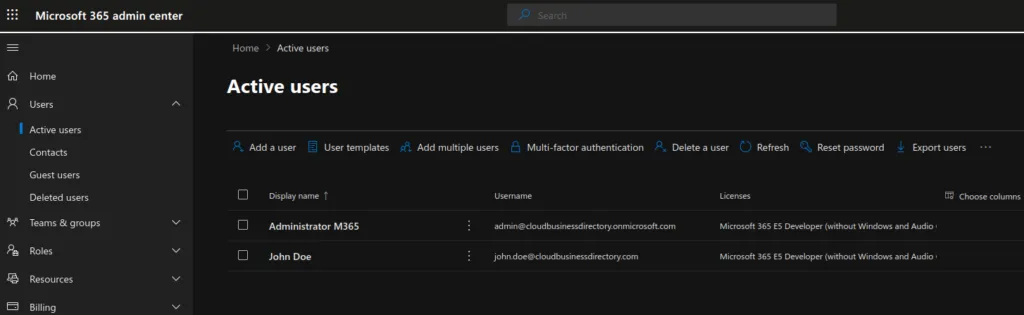
On the left hand side pane, click on Users, then Active Users. This will populate the list of available users on the main screen.
-
Click on the name of the user to who you would like to assign a license.
-
On the popup pane on the right, click on the licenses and apps tab.
-
Check the license you wish to assign to the user and click Save Changes.
-
Your user’s license allocation occurs instantly. However some of the associated services and features (for instance an Exchange Online mailbox) will be fully functional after maximum 1 hour.
4. TRACE-AI Execution Workflow
Section titled “4. TRACE-AI Execution Workflow”- Triage: Review monitoring dashboards or error metrics for initial anomaly spikes or timeout signatures.
- Record Evidence: Export service diagnostic logs, event viewers, or failure traces.
- Analyze: Correlate error signatures against known infrastructure or configuration limits.
- Correlate: Match active incident timeline against recent deployments or scale events.
- Execute & Verify: Apply corrective remediation steps and verify telemetry baseline recovery.
5. Vendor Documentation & Validation Guardrails
Section titled “5. Vendor Documentation & Validation Guardrails”- Authority Reference: Cross-reference configuration changes against official vendor documentation.
- Validation Gate: Require staging environment testing and Human-in-the-Loop SME approval before production changes.