How to add a Microsoft 365 user from a user template
This article provides guidance on how to add a Microsoft 365 user from a user template. The article appears in my podcast and Youtube channel. View this article as a how-to video on Youtube.
https://youtu.be/4M8PFi8ZvCQ?list=PLYbmn4csggdE9qNg7iIOwLJf1EUHUBvCw
You need to add a Microsoft 365 user from a user template in the Microsoft 365 Admin Center.
Solution
Section titled “Solution”Carry out the following steps to add a Microsoft 365 user from a user template in the Microsoft 365 Admin Center.
-
Navigate with your Web browser to https://admin.microsoft.com.
-
On the left pane, click on Users, Active Users then click on “User Templates” on the main screen and choose “Add template”.
-
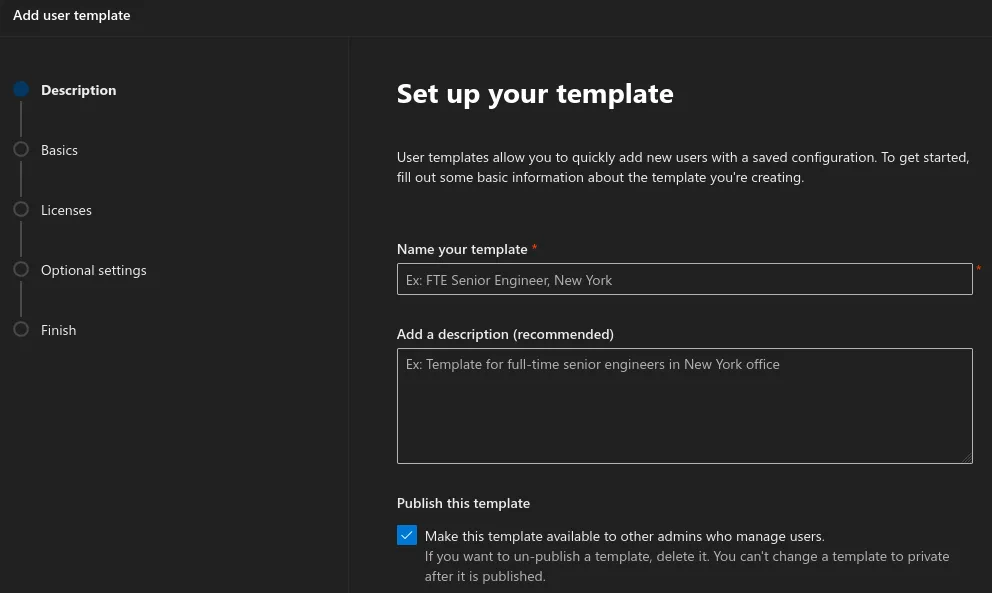
You will be taken to the “Setup your template” page. Provide a name and a description for your user template.
-
Optionally, tick the “Make this template available to other admins who manage users” checkbox if you want to un-publish a template, delete it. You can’t change a template to private after it is published. Click “Next” to continue.
-
Select the user DNS domain and under password settings choose the “Auto-generated password” option.
-
Tick the “Require the user to change their password when they first sign in” checkbox and click “Next”.
-
Select the geographical location and the type of licence to assign as part of this user template. Or check the option to not assign a license to the user. Under the “Apps” section, leave all default selections and click “Next”.
-
On the next page, optionally fill-in any additional admin roles you wish to provide the user with in the context of this user template and fill-in any additional profile information if needed. For example, for the HR department of a large corporation, fill-in the “Department” field with the “HR” value. Click “Next” to continue“.
-
Review your template selections and click “Finish Adding” to finalize the creation of the new user template.
-
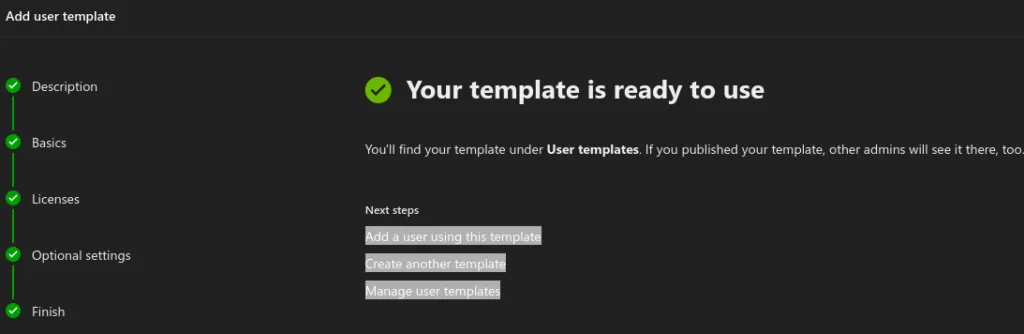
Your template is now ready to use. As next steps, you have the following options:
-
Add a user using this template
-
Create another template
-
Manage user templates
-
4. TRACE-AI Execution Workflow
Section titled “4. TRACE-AI Execution Workflow”- Triage: Review monitoring dashboards or error metrics for initial anomaly spikes or timeout signatures.
- Record Evidence: Export service diagnostic logs, event viewers, or failure traces.
- Analyze: Correlate error signatures against known infrastructure or configuration limits.
- Correlate: Match active incident timeline against recent deployments or scale events.
- Execute & Verify: Apply corrective remediation steps and verify telemetry baseline recovery.
5. Vendor Documentation & Validation Guardrails
Section titled “5. Vendor Documentation & Validation Guardrails”- Authority Reference: Cross-reference configuration changes against official vendor documentation.
- Validation Gate: Require staging environment testing and Human-in-the-Loop SME approval before production changes.