Citrix connection to "Desktop" Failed with Status (Unknown client error 0)
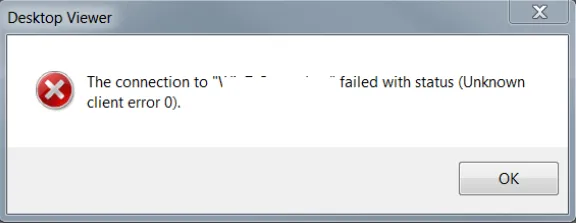
You try to launch a Citrix Virtual App or Virtual Desktop using latest Citrix Workspace App client and connecting to any Virtual Apps and Desktops version and you receive the following error in Citrix connection to “Desktop” Failed with Status (Unknown client error 0).
Solution
Section titled “Solution”There are various reasons for receiving an unknown client error 0 via the Citrix Workspace App client. The most common reasons along with their resolution steps are the following:
-
Misconfigured local firewall. The local operating system firewall should be set to allow all outgoing connections to the public FQDN of Citrix Gateway on port 443. Also all Citrix Workspace App client .exe executables must be whitelisted on the firewall. All executables in local Windowws installation path “C:\Program Files (x86)\Citrix\ICA Client” should be whitelisted and then you shoul try your Citrix desktop launch again.
-
In your Citrix Storefront server management console, find the “Optimal HDX Routing” configuration under the “Configure Store settings” section. Clear the “Optimal HDX Routing” check-boxes in the Gateway record having the Citrix Delivery Controllers.If you have a Storefront server cluster, ensure that you successfully propagate this configuration change to all Storefront servers and try your Citrix desktop launch again.
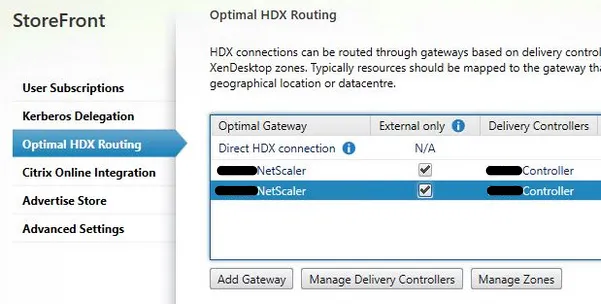
The above Storefront-related issue is by design, see the following Citrix KB article for more details: https://support.citrix.com/article/CTX215781/hdx-optimal-routing-for-both-internal-and-external-gateway-access-using-one-store.
For more Citrix troubleshooting hints and tips, refer to my e-book “Citrix Virtual Apps and Desktops troubleshooting: A comprehensive guide for Citrix administrators” as well as review the separate article “Citrix Virtual Apps and Desktops troubleshooting tips”.
4. TRACE-AI Execution Workflow
Section titled “4. TRACE-AI Execution Workflow”- Triage: Review monitoring dashboards or error metrics for initial anomaly spikes or timeout signatures.
- Record Evidence: Export service diagnostic logs, event viewers, or failure traces.
- Analyze: Correlate error signatures against known infrastructure or configuration limits.
- Correlate: Match active incident timeline against recent deployments or scale events.
- Execute & Verify: Apply corrective remediation steps and verify telemetry baseline recovery.
5. Vendor Documentation & Validation Guardrails
Section titled “5. Vendor Documentation & Validation Guardrails”- Authority Reference: Cross-reference configuration changes against official vendor documentation.
- Validation Gate: Require staging environment testing and Human-in-the-Loop SME approval before production changes.